
1. Click on Classes in the side navigation. 
2. Search for the class by setting the appropriate filters.
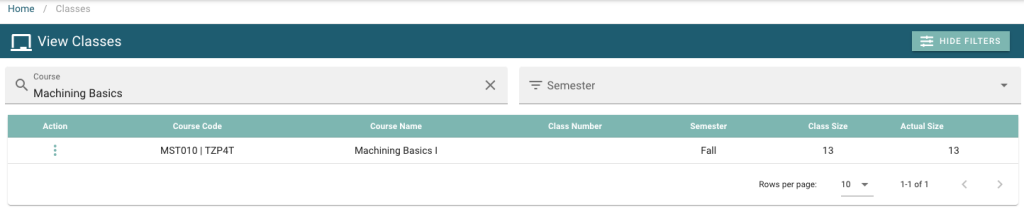
3. Click on the action menu  , and then click on View.

4. Click on Progress / Marks  in the row under Course Information.
5. Click on Send Progress Email To All Students. 
6. Select any of the optional fields viewed in the lower window. This will add attachments accordingly, to be sent to the desired recipients.
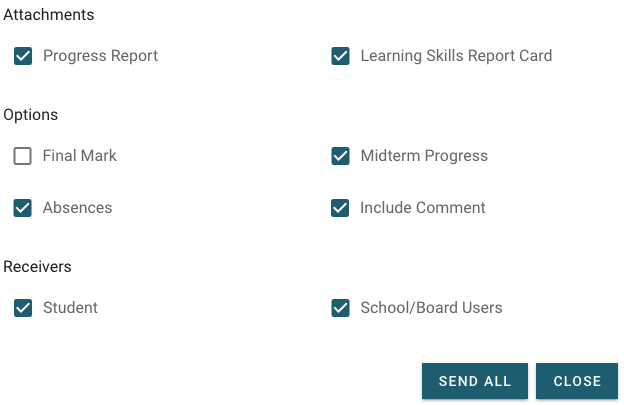
7. Click Send All  to complete the process of sending out the ‘progress emails’ to students & users.
5. Find the student in the list displayed on page.

6. Click the action menu , and then click Send Progress Email. .
.
7. Select any of the optional fields viewed in the lower window. This will add attachments accordingly, to be sent to the desired recipient.
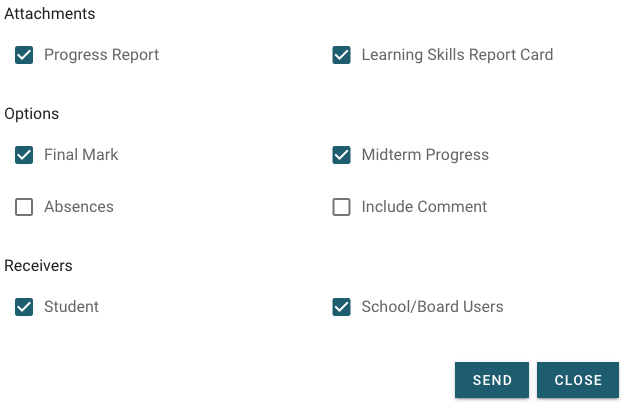
8. Click Send All to complete the process of sending out the ‘progress email(s)’ to the selected student.