1. Click on Users in the side navigation. 
2. Click on the + New User button on the users list page.
3. Fill in the input fields with the new user information and click Save  at the bottom of the page.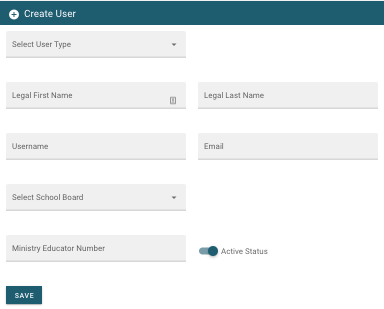
2. Click on Files and then Import Users from CSV in the side navigation.
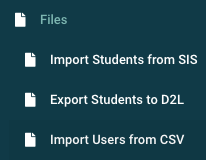
3. Select your School Board, User Type, and then click Choose File to upload the created CSV.
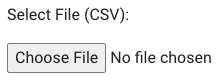
4. Finally click Upload File button  to complete the import process.