
1. Click on Classes in the side navigation. 
2. Search for your class by setting the available filters.
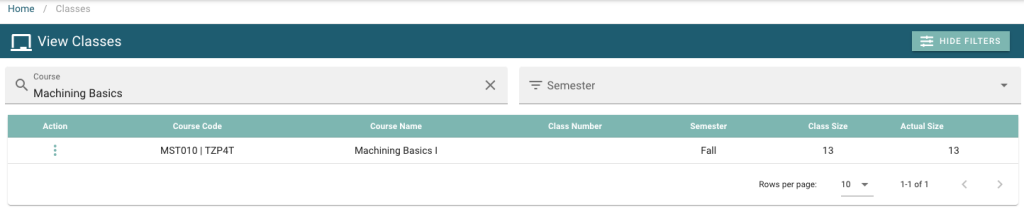
3. Click on the action menu  , then click on View.

4. Click on Attendance  in the row under Course Information.
5. Scroll horizontally to select the appropriate date. e.g.  Once the column is found, click on the Edit icon in the second row.
6. Enter the attendance selection from the drop down filter. Continue the same process for all students enrolled in the selected class.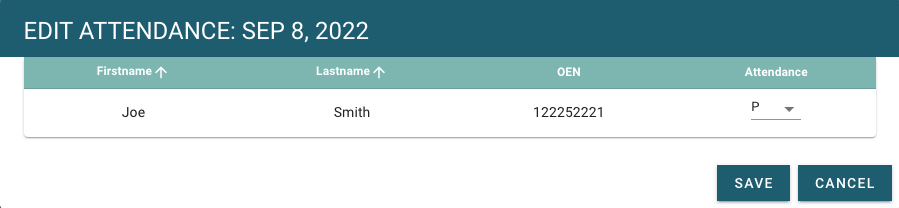
7. Click Save  to complete attendance for the selected day.